Overview
Simployer One now supports multi-tenant payroll integrations: the ability to connect a single Simployer One account to multiple payroll accounts in one external payroll system.
This is relevant for organisations that manage separate payroll tenants for different legal entities, countries, or divisions. Each integration instance has its own description, employee scope, and independent settings, including sync schedule, credentials, and notification preferences. The scope controls which employees are synced with each particular payroll tenant. Data exports (such as TimeOff) let you select the specific integration instance so data reaches the correct payroll account.
The sections below walk through how multi-tenant payroll connections work, how the integration overview looks in practice, and the key concepts to keep in mind.
How Multiple Payroll Connections Work
With multi-tenant payroll integrations, a single Simployer One account can connect to multiple payroll accounts in one external payroll system. Each integration has its own description and scoped employee list. Multiple organisations can share one payroll tenant, or each can have its own.
Simployer One (scope)
Payroll Tenant
Use case 1 One scope → One tenant
| Nordic Group AB · 80 empl. | → | Visma Net "Nordic Group AB" |
| Nordic Group Sp. · 50 empl. | → | Visma Net "Nordic Group Sp." |
| Nordic Group AS · 70 empl. | → | Visma Net "Nordic Group AS" |
Use case 2 Multiple orgs → Shared tenant
Nordic Group AS · Sales 40 employees Nordic Group AS · Operations 30 employees | → | Visma Net "Nordic Group AS" Shared tenant |
Integration Overview (Example)
Below is an example of how multiple integrations appear in the Simployer One interface. Each row shows the payroll system, its description, the scoped employees, and the setup date.
| Integrasjon | Beskrivelse | Dato |
|---|---|---|
| Visma Net | Nordic Group AB | 2026-01-30 |
| Visma Net | Nordic Group Sp. | 2026-01-29 |
| Visma Net | Nordic Group AS | 2026-01-30 |
TimeOff Export
When exporting time-off data, users select which specific integration instance to export to. The dropdown shows both the payroll system name and the description, for example "Visma Net (API) - Nordic Group AS", so there is no confusion about which account receives the data.
Setting Up a New Integration
1 Add a new integration
An admin navigates to the Integrations page and clicks "Add integration", then selects the payroll system to connect to (e.g., Visma Net).
2 Enter a description
The setup wizard includes a Description field. Enter a meaningful label, for example "Nordic Group AS", to distinguish this connection from other instances of the same payroll system.
3 Configure the scope
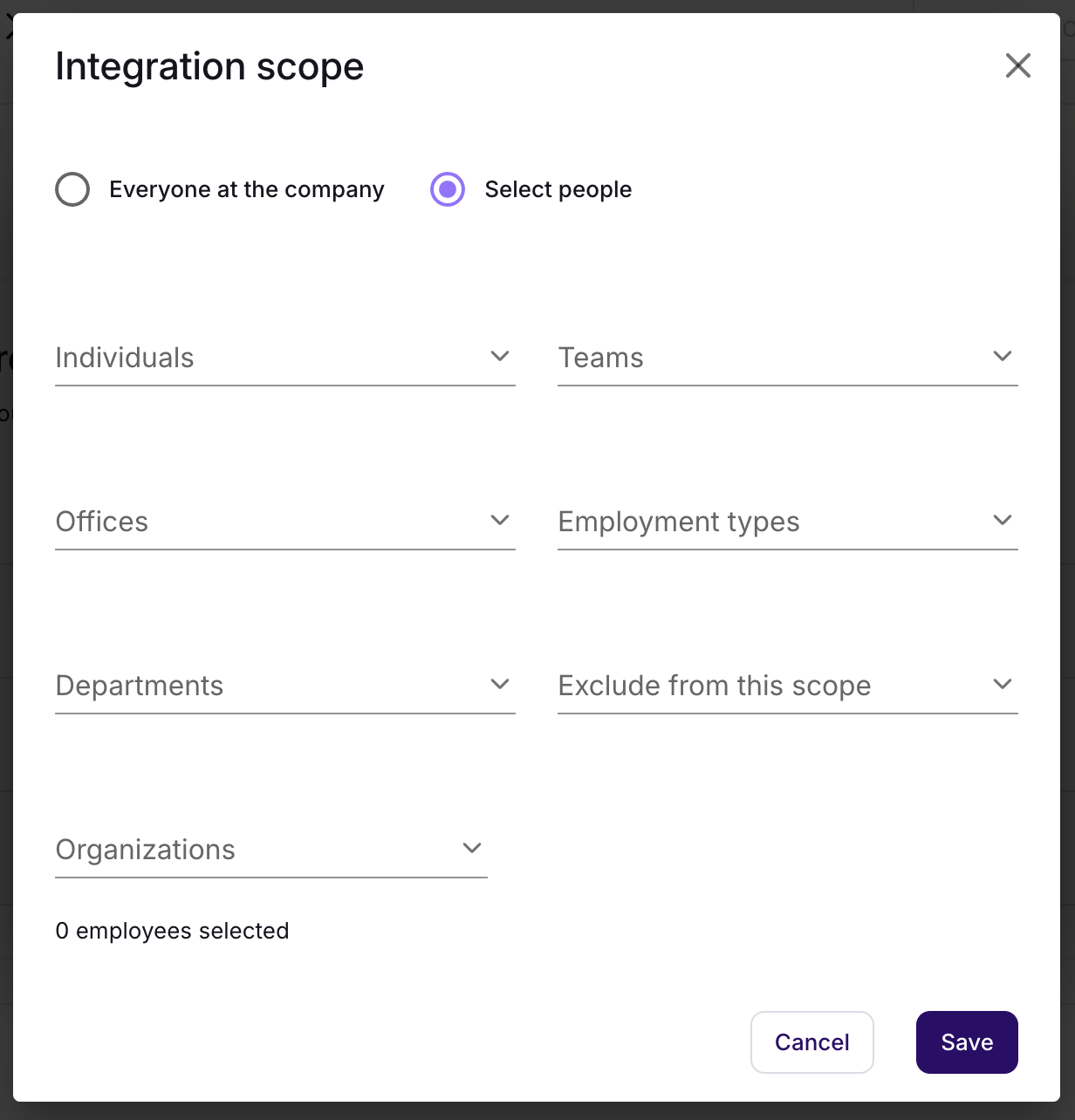
Define which employees need to be synced with this particular payroll tenant. Choose "Everyone at the company" or "Select people" to filter using the available scope options.
Scope dialog:
4 Integration appears in the table
The new integration instance is listed alongside any existing ones. Multiple instances of the same payroll system are distinguished by their descriptions and scopes.
5 Use in TimeOff Export and other workflows
When exporting data, users select the specific integration instance from a dropdown, such as "Visma Net (API) - Nordic Group AS", so they always know which payroll account receives the data.
Key Concepts
Description
A custom label added during setup to distinguish between multiple instances of the same payroll system.
- "Nordic Group AB"
- "Nordic Group AS"
- "Nordic Group Sp."
Scope
Defines which employees need to be synced with a particular payroll tenant.
Two modes:
- Everyone at the company
- Select people -- filter by:
- Individuals
- Teams
- Offices
- Departments
- Employment types
- Organizations
- Exclude
Independent Settings
Each integration instance operates independently with its own configuration.
- Own sync schedule (days of the week)
- Own notification settings
- Own credentials & connection
- Selectable in TimeOff Export
Related Articles
Payroll Integrations
Overview of Payroll Integrations
Setting Up Visma Net Integration
Setting Up Tripletex Integration
Configuring Employee Scope for Integrations
Was this article helpful?
That’s Great!
Thank you for your feedback
Sorry! We couldn't be helpful
Thank you for your feedback
Feedback sent
We appreciate your effort and will try to fix the article