Note: Absence data (such as sickness or parental leave) must be exported separately via Manage time → Time off Export. This data is not included in the scheduled or manual employee sync process.
Overview:
Absence data are not handled in the scheduled or manual syncs.
You can find absence data in Manage time → Time off Export.
Exporting Absence Data
First, export your employees to Tripletex.
After this, you can also export the time off data for those employees.
Click Export and then run the update.
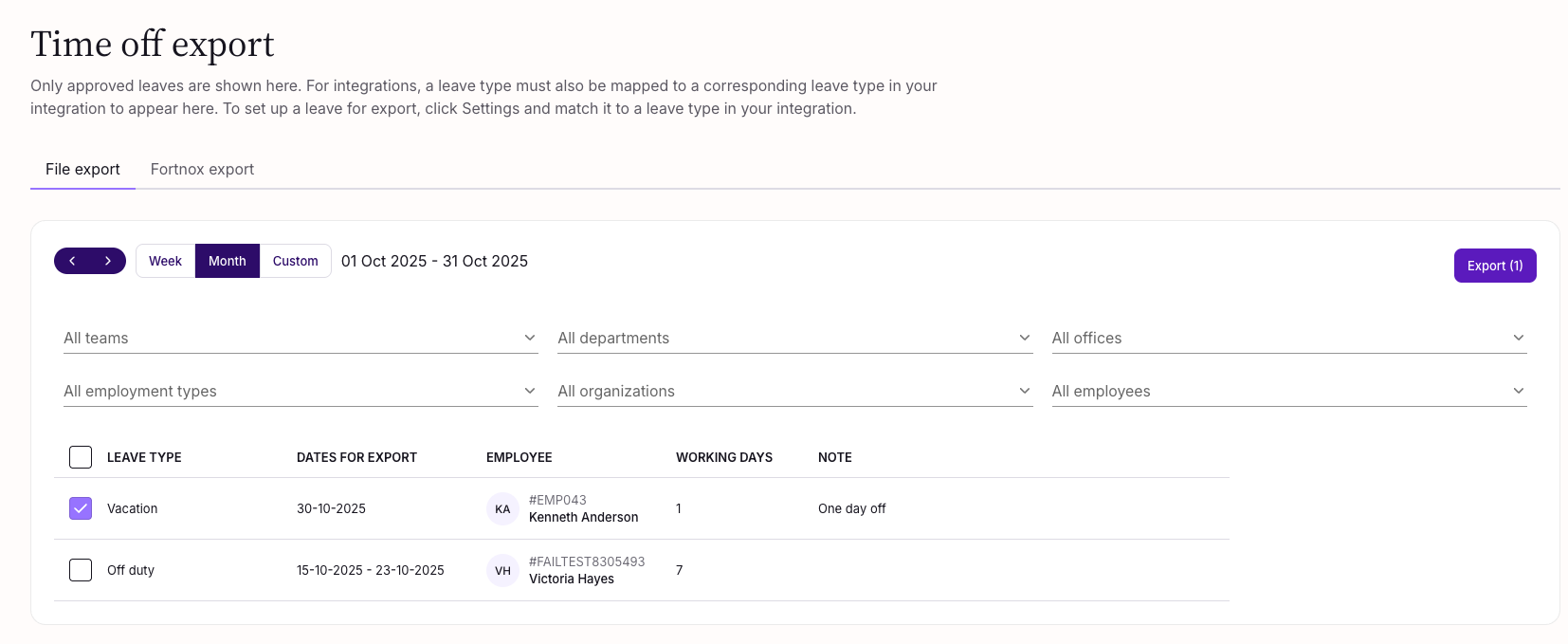
Each leave is sent to Tripletex via one of two paths, based on the leave type code set in Simployer:
- If the code matches a Tripletex activity number (exact, case-sensitive) → exported as daily timesheet entries against that activity. For example: absences like Sick leave or Vacation will be created as timesheet entires.
- If the code is one of these 7 reserved codes → exported as a leave of absence:
- FURLOUGH
- PARENTAL_BENEFITS
- MILITARY_SERVICE
- OTHER_NOT_STATUTORILY_REQUIRED
- OTHER_STATUTORILY_REQUIRED
- EDUCATIONAL_NOT_STATUTORILY_REQUIRED
- EDUCATIONAL_STATUTORILY_REQUIRED.
- Otherwise → skipped and reported.
Note: The 7 reserved codes are standard codes recognised by Tripletex and must NOT be configured as Activity Numbers in Tripletex. They only need to be set in Simployer One when the corresponding leave-of-absence type is required.
Hours calculation:
- For full or multi-day timesheet entries, hours are calculated as (grade percentage ÷ 100) × 7.5, assuming a 7.5-hour standard workday.
- Partial-day entries use the actual leave duration.
Data fields
SimployerOne field | Tripletex field | Note |
leave.id | leaveOfAbsence.importedLeaveOfAbsenceId | |
leave.startDate | leaveOfAbsence.startDate | |
leave.endDate | leaveOfAbsence.endDate | |
leave.gradePercentage or leave.workingDays.amount | leaveOfAbsence.percentage | gradePercentage is used for full day or multiple day leaves. For partial day leaves, workingDays.amount is used. |
leave.id | leaveOfAbsence.importedLeaveOfAbsenceId | |
Leave Type Code | leaveOfAbsence.type | If leave type code is set to either one of the following in Simployer One: FURLOUGH PARENTAL_BENEFITS MILITARY_SERVICE OTHER_NOT_STATUTORILY_REQUIRED OTHER_STATUTORILY_REQUIRED EDUCATIONAL_NOT_STATUTORILY_REQUIRED EDUCATIONAL_STATUTORILY_REQUIRED |
Timesheet entry fields
SimployerOne Absence Fields | Tripletex absence code | Note |
Leave Type Code | entry.activity.number | Needs to match Tripletex Activity Number. |
leave.workingDays.days[].date | entry.date | |
leave.startDate / leave.endDate or leave.gradePercentage | entry.hours | For a partial day leave. The hours are determined by subtracting the start time from the end time. For leaves that span a full or multiple days, the number of hours is calculated by considering 7.5 hours work day. |
Was this article helpful?
That’s Great!
Thank you for your feedback
Sorry! We couldn't be helpful
Thank you for your feedback
Feedback sent
We appreciate your effort and will try to fix the article